 Milan-Cortina 2026 Olympic Winter Games: freestyle skiing women's freeski slopestyle qualification
Orange Jordan Sponsors Al Hussein Technical University’s "Leadathon"
The CEO of Orange Jordan Visits Yarmouk University President to Strengthen the Strategic Partnership
*Orange Jordan Showcases Fabrication Lab Innovations at the Makers’ Forum
3 Winners at Orange Summer Challenge 2024 Join the “Social Innovation” Journey Fostering "Tech4Impact”
Estarta Named Cisco Systems' Distinguished Supplier of the Year 2024
Milan-Cortina 2026 Olympic Winter Games: freestyle skiing women's freeski slopestyle qualification
Orange Jordan Sponsors Al Hussein Technical University’s "Leadathon"
The CEO of Orange Jordan Visits Yarmouk University President to Strengthen the Strategic Partnership
*Orange Jordan Showcases Fabrication Lab Innovations at the Makers’ Forum
3 Winners at Orange Summer Challenge 2024 Join the “Social Innovation” Journey Fostering "Tech4Impact”
Estarta Named Cisco Systems' Distinguished Supplier of the Year 2024
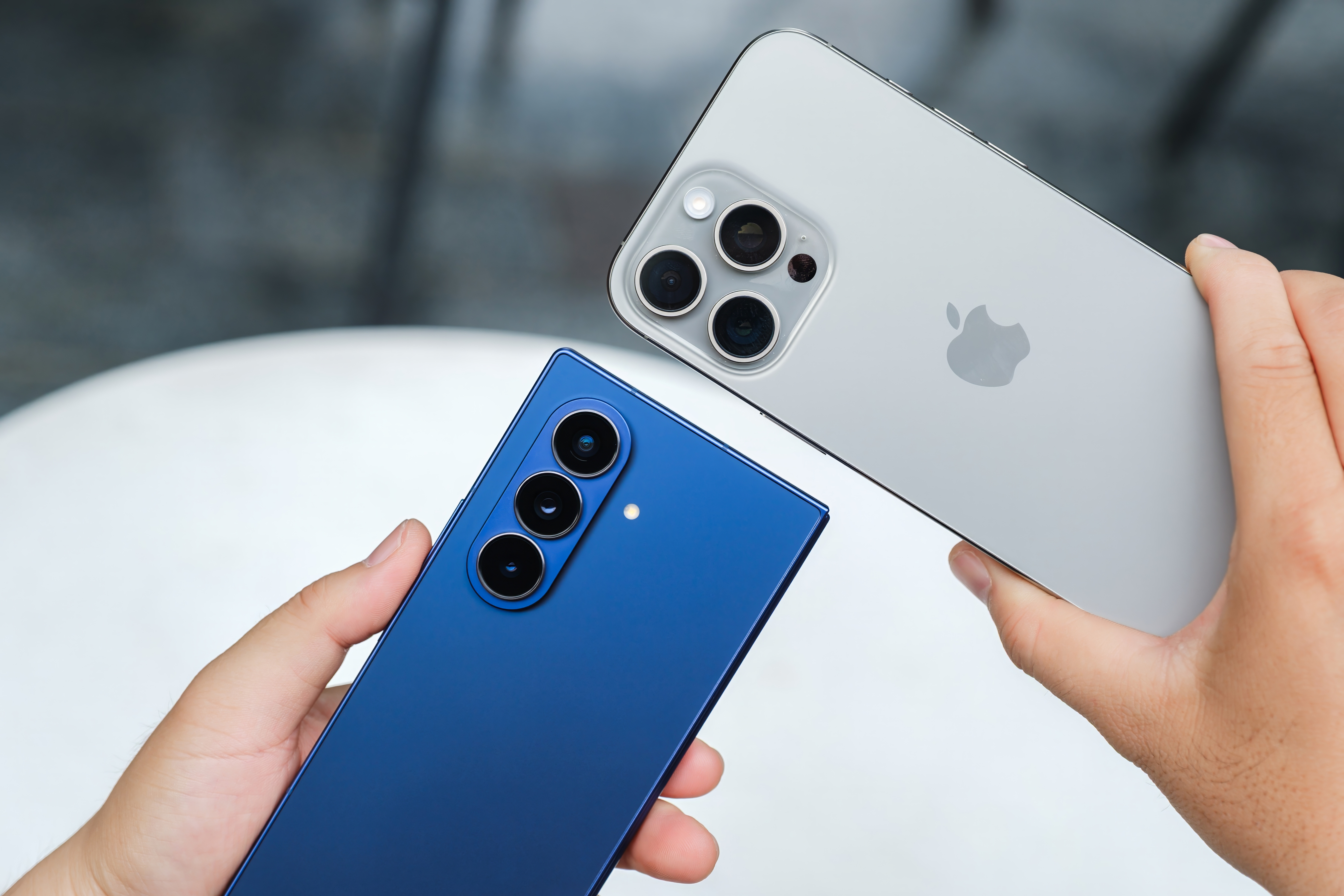
Switching between phone operating systems has become increasingly user-friendly, with Apple and Google collaborating to ensure a smooth transition for users moving from iOS to Android. The latest updates to both operating systems now offer options to transfer data without the fear of losing precious information, including photos, contacts, and messages.
These updates address a major hurdle that previously deterred users from switching between systems, which often required third-party apps and unofficial methods, leading to potential data loss. Now, users can migrate their data seamlessly.
According to our tests at Al Jazeera Net, the new feature works effectively. We successfully transferred data from an iPhone to a Samsung phone without any data loss.
There are multiple ways to enable the transfer feature, especially between iPhones and Samsung Galaxy devices. However, any Android phone with the latest updates should support this feature.
The process doesn't require special equipment or app installations. On your iPhone, navigate to Settings, select Factory Reset, and choose the option to move to Android. The phone will then prepare the data for transfer.
Alternatively, you can set up your Samsung phone, where a welcome message will prompt you to transfer data from another Android or Apple device.
You can then choose to download data from iCloud backups or connect the phones directly via cable. If using a cable, select the 'Move to Android' option on your iPhone.
If you opt for iCloud, you'll be prompted to enter your iCloud account details and select the data you wish to transfer. After a few minutes, the transfer should complete.
For a smooth transfer, ensure both phones are connected to the same Wi-Fi network or are physically connected via cable.
Once the transfer is complete, all your data will be available on your new phone, eliminating the need for additional intervention.
Transferring WhatsApp messages between an old iPhone and a new Android device is also straightforward. In WhatsApp settings on your old phone, select Data and Backup, then choose to transfer messages to an Android phone.
A screen will appear, prompting you to scan a code displayed on your new Android phone. After setting up WhatsApp on the new Android device, entering your phone number, and confirming it, the code will appear, which you need to scan with the old phone. The transfer will then begin automatically.
While this method works well for most data, some information cannot be directly transferred from iPhone to Android. This includes apps, app login details, banking information, and passwords.
Generally, apps and login data need to be transferred manually.
Passwords can be easily transferred to a password management app. However, you must first install the new password manager on your phone.
There are several password management options available on Android, such as Samsung Pass or Google's password manager.
For this example, we chose Bitwarden, an open-source password manager.
To transfer passwords, go to the Passwords app on your iPhone, select all passwords, tap the three dots, and choose to transfer passwords to another app.
You'll be asked to re-select the passwords you want to transfer and then choose the app to share them with.
All available password management apps on your phone will appear as options. In our case, Bitwarden and Chrome's built-in password manager were available.
Select your preferred app and follow the steps within that app to transfer your passwords and keys.